
Installation #
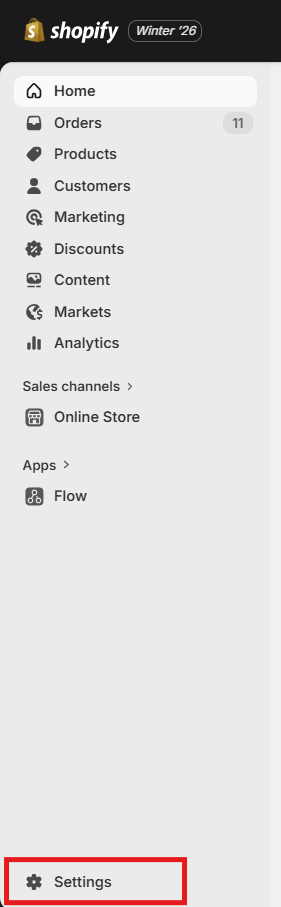
Step 1: Log in to your Shopify Dashboard. Select Settings from the bottom left of your Dashboard page.
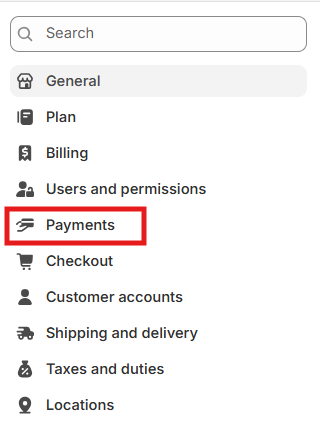
Step 2: After clicking Settings, select “Payments”.
Step 3: In the “Payments” section. Click on the Add Payment Method button.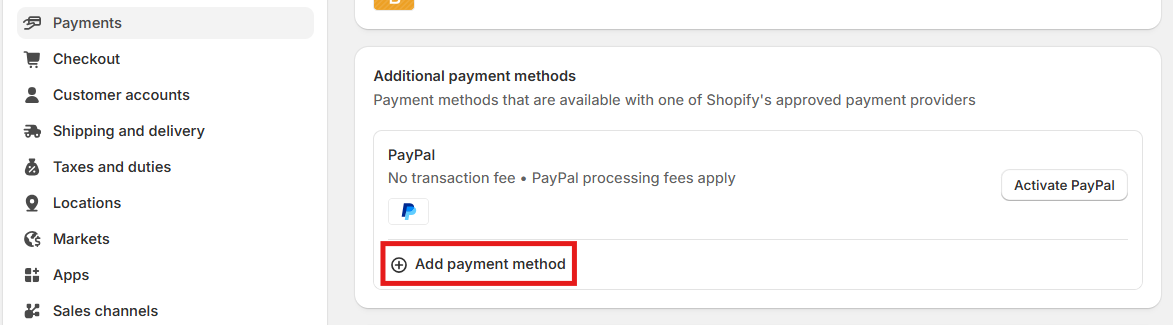
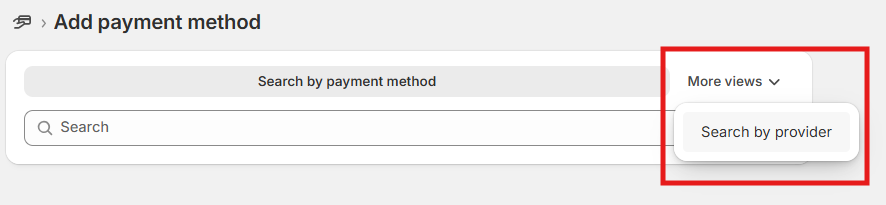
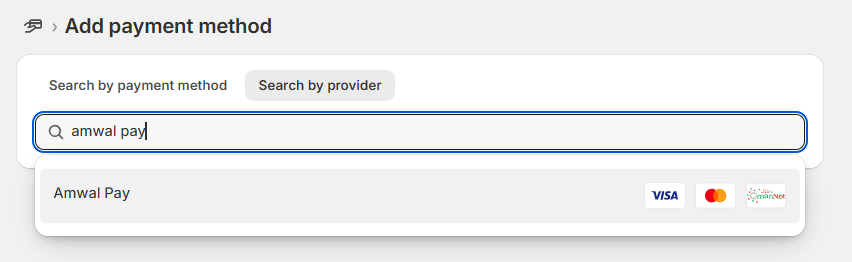
Step 4: After choosing “Add Payment Method”, click “More Views”, then click on “Search by provider”, write “amwal pay” in the search field, and click on the Amwal Pay icon.
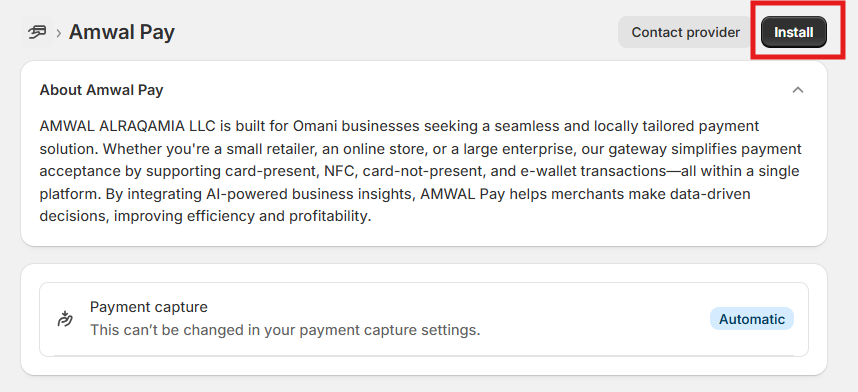
Step 5: Click on the “Install” button to begin the app installation.
Step 6: Configure the AmwalPay Payment App
- Fill in your credentials:
- Merchant Environment: Select UAT or SIT or Production.
- Merchant ID: Enter your provided Merchant ID.
- Terminal ID: Enter your Terminal ID.
- Secret Key: Enter your secret key.
- Click Submit to save your settings.
Step 7: Enable Payment Methods
- Navigate to Amwal Pay Settings.
- Toggle the switches for Visa, Mastercard, OmanNet, etc., to enable them.
- If you are using the UAT or SIT testing environment, enable Test Mode to simulate test transactions otherwise, disable this mode.
Step 8: Activate Amwal Pay
- Click Activate to enable Amwal Pay for transactions.
- Amwal Pay is now ready to process payments!


